Similar Incidents
Past incidents are a valuable source of information during the incident management process. Reviewing incidents with similar characteristics can help you understand recurring issues and accelerate the resolution process. However, this process can be very manual and time-consuming, requiring you to search through large groups of incidents to identify similarities.
Similar Incidents speeds up this process by identifying incidents with matching characteristics within the Incident Details pane. Each similar incident includes details such as impact, assignment, steps to resolve, and a summary describing why the incident was considered similar.
Similar incidents are chosen based on a similarity score. The score is calculated using similarity categories based on entity, problem, impact, and topology. A list of the incidents most similar to the selected incident is generated each time you open the Historical tab in the incident details pane.
Use similar incidents to improve MTTR and help your team learn from past resolution steps.
BigPanda University Advanced Insight Module course
Learn more in the BigPanda University Advanced Insight Module course.
By the end of the course you will be able to:
Generate and review AI Analysis reports for your incidents that will help you reduce MTTR.
Review root cause change suspects and identify changes that are the root cause of incidents.
Compare incidents with similar characteristics to enhance context and resolve incidents faster.
Click here to enroll.
Key Features
Reference existing incidents from within the Incident Details pane.
See at a glance how similar matched incidents are, and what elements matched.
View the key outcomes and the root cause of historical incidents at a glance.
Relevant Permissions
Roles with the following permissions can view Similar Incidents:
Role Name | Description |
|---|---|
Environment - Incident Actions | Full access ability to perform actions on all enrichment tags and incidents in the specified environment. |
Environment - View | Read-only access to all enrichment tags and incidents in the specified environment(s) without the ability to change or perform any incident action. |
See the Roles Management page to learn more about Environment permissions in BigPanda.
Similarity Calculation
The Similarity match percentage is calculated based on a group of similarity categories defined in the table below. For an incident to be considered similar, it must have a similarity score of at least 55 percent.
The Entity and Problem categories are required for an incident to be considered by the algorithm, and are weighted higher even when Impact and Topology are included.
Default tags
Your organization may have a different set of default tags configured for these categories. The Example Default Tags listed in the table below are common tags many organizations include in use to define each category. You can choose to include or exclude tags as needed.
To adjust your category tags, contact BigPanda support.
Updating tags
When you add new tags or integrations, your default category tags will need to be updated to ensure your similarity scores remain accurate.
To have your tags reindexed, contact BigPanda Support.
Category | Definition | Example Default Tags |
|---|---|---|
Entity | The primary affected entity for each alert such as the host, node, device, or database. For certain alerts, the entity may be the application, container, endpoint, etc. This identifies the specific element experiencing the issue. | host node object |
Problem | The specific issue observed for each alert, such as the check, alert title, or condition name. This details the nature of the detected failure. | check problem title |
Impact | Any associated or dependent systems, applications, services, platforms, or clients/customers that may be affected by any of the alerts. This details the potential effects and reach of the problem. | app application service |
Topology | Additional attributes about each of the affected entities that provide relational context, such as environment, datacenter, location, cloud provider, or cluster. This outlines the entity's physical or logical location within the IT environment. | dependency connected_to host_basename |
View Similar Incidents
To view similar incidents, open the incident details pane and click the Historical tab.
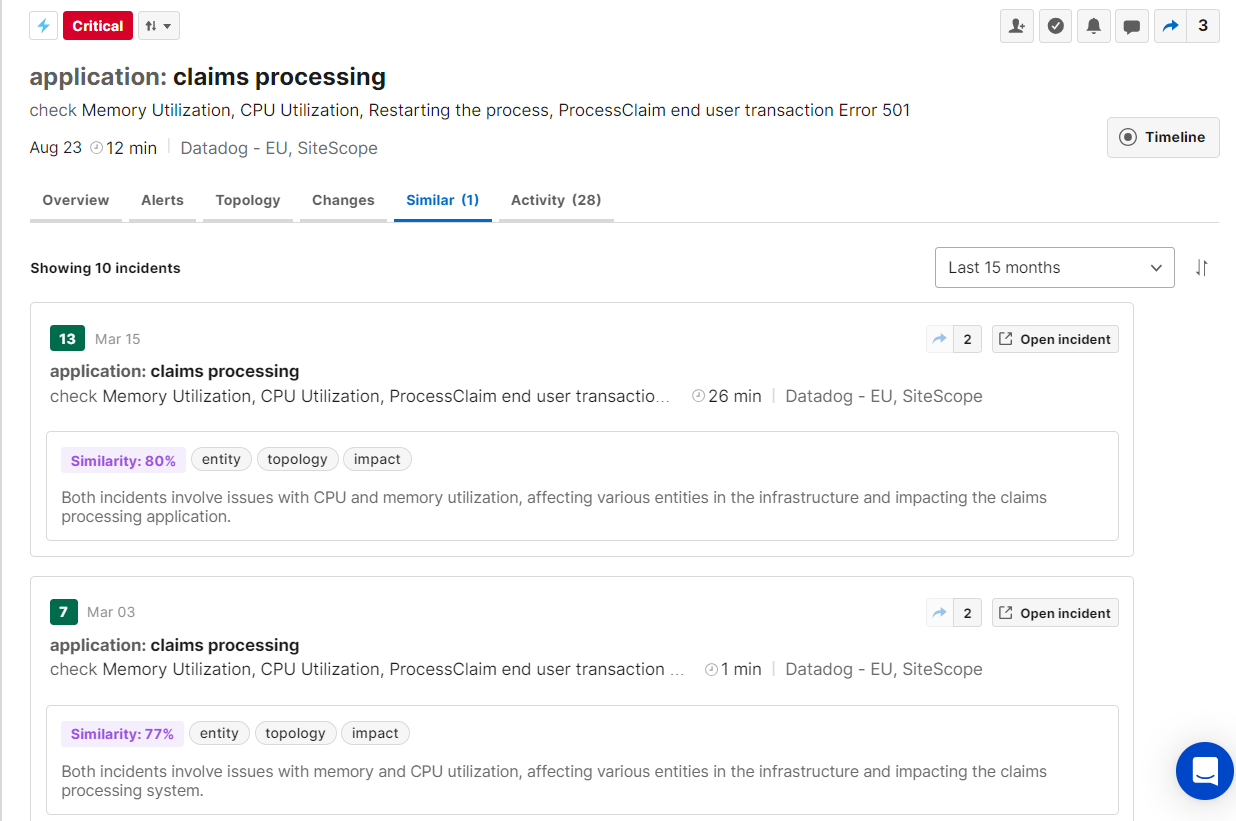
Number of similar incidents
The number of similar incidents found appears on the Historical tab, so you can see whether similar incidents are available before you open the tab.
By default, the Historical tab lists historical incidents from the last 30 days, sorted by similarity score with the most similar first. If there are no matches, No results found appears with a prompt to expand the date range.
Similar incidents are ordered according to their similarity score, with the most similar incidents appearing first. See the Similarity Calculation section for more information about how the score is calculated.
To change what the list shows:
To filter by type, select All, Similar incidents, or ITSM tickets from the type dropdown.
To change the time frame, select Last 30 days, Last 60 days, or Last 90 days from the time frame dropdown, or select Custom date range..., set the Start Date, End Date, and times, and click Apply.
To change the order, click the Sort by icon and select Score or Last updated.
If two incidents have the same similarity score, the most recent incident will appear in the list first. If no similar incidents exist, a “No results found” message will appear.
By default, only incidents from the last 30 days will appear in the list. Use the dropdown at the top right of the tab to select a predefined time period or choose a custom time period. You can select incidents from up to 15 months ago.
Time Period
Historical incidents searches any incidents that were active or updated 24 hours to 15 months before the tab is selected.
Similar Incidents in ServiceNow
Similar Incidents can also be configured to appear within ServiceNow. See the AI Detection and Response for ServiceNow documentation for more information.
Incident Similarity Details
On the Historical tab, each matched incident shows basic details, including the incident title, number of alerts, source, duration, comments, and shares. Click Open incident to open the matched incident.
The lower part of each card shows the similarity score, the matched similarity categories, and a short summary of why the incident was considered similar. The summary is generated each time you open the tab.
Matched categories
Only categories that match with at least a 75 percent score appear on the ribbon.
Categories with scores lower than 75 percent appear in the details screen.
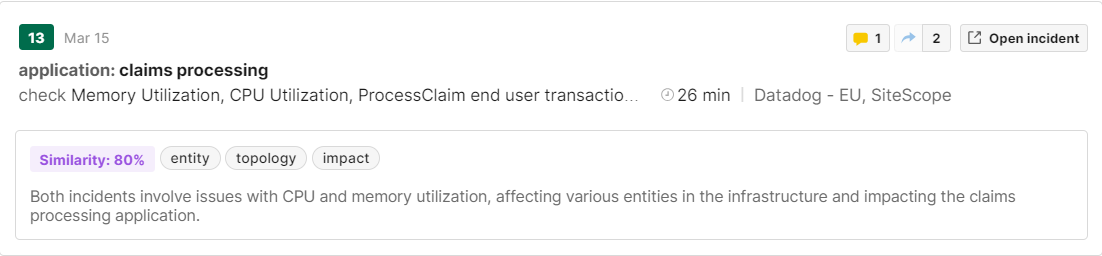
Incident Details
Incident similarity window
To see why an incident was considered similar, click the lower part of its card. The Incident similarity window shows the overall score with a summary, and a score and explanation for each category (entity, problem, impact, topology).
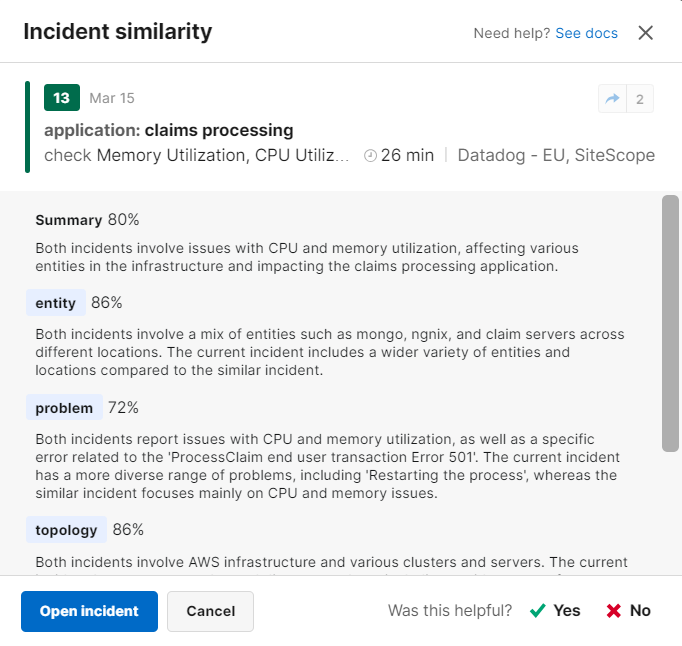
To send feedback, under Was this helpful?:
Click Yes if the incident was similar and helped your triage.
Click No if it wasn’t similar or helpful. You’re prompted to say what was wrong.
Click Open incident to open the incident, or Cancel to close the window.
Recommended Incident Actions
Limited Availability
This feature is in a limited availability state and may not be enabled for your organization. Contact your BigPanda account team if you are interested in seeing automatic recommendations for Agentic Triage.
AI-generated recommended incident actions provide recommendations for incident tags, helping you speed up the triage process. The default tags used are priority and assignee.
Customize tag recommendations
Tags used for recommended incident actions can be customized in the AIA Configuration settings page.
You can select up to five free-text or closed-value incident tags for recommendations. Multi-value or multi-select tags are not supported.
These recommendations are based on how similar incidents from the past 30 days were triaged.
Similarity threshold
By default, similar incidents with less than a 30 percent similarity score will not be used to generate recommendations. The similarity threshold can be updated in the AIA Configuration settings page.
When recommended actions are available, a purple Incident Actions banner will appear in the Overview tab.
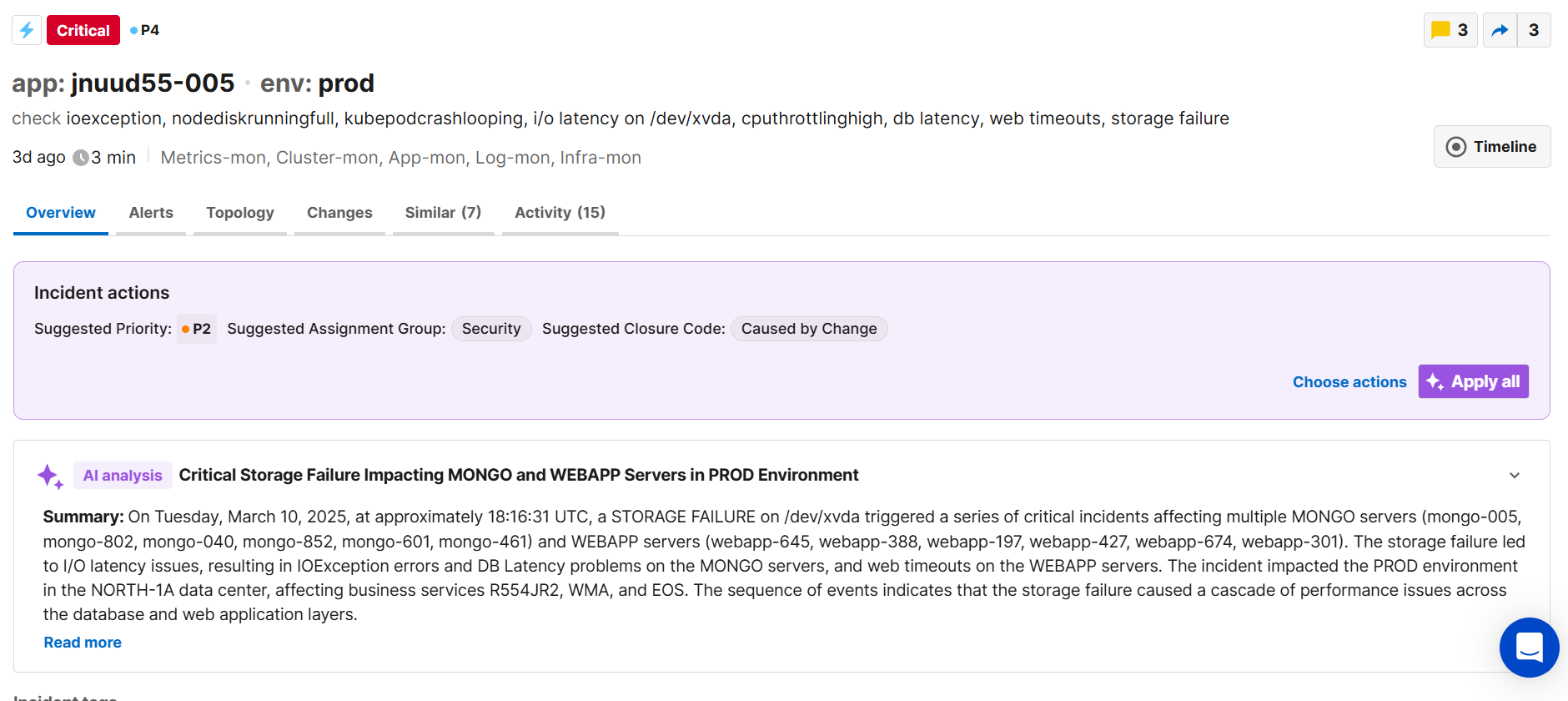
Incident actions
To apply all of the recommended actions, select Apply all.
If you'd like to choose which actions to apply, select Choose actions. This opens the Recommended actions window, where you can see the percent similarity match for each action, and select which actions you'd like to apply. Click Apply recommendations to apply your selected recommendations. To view the similar incidents these matches were selected based on, click See similar incidents.
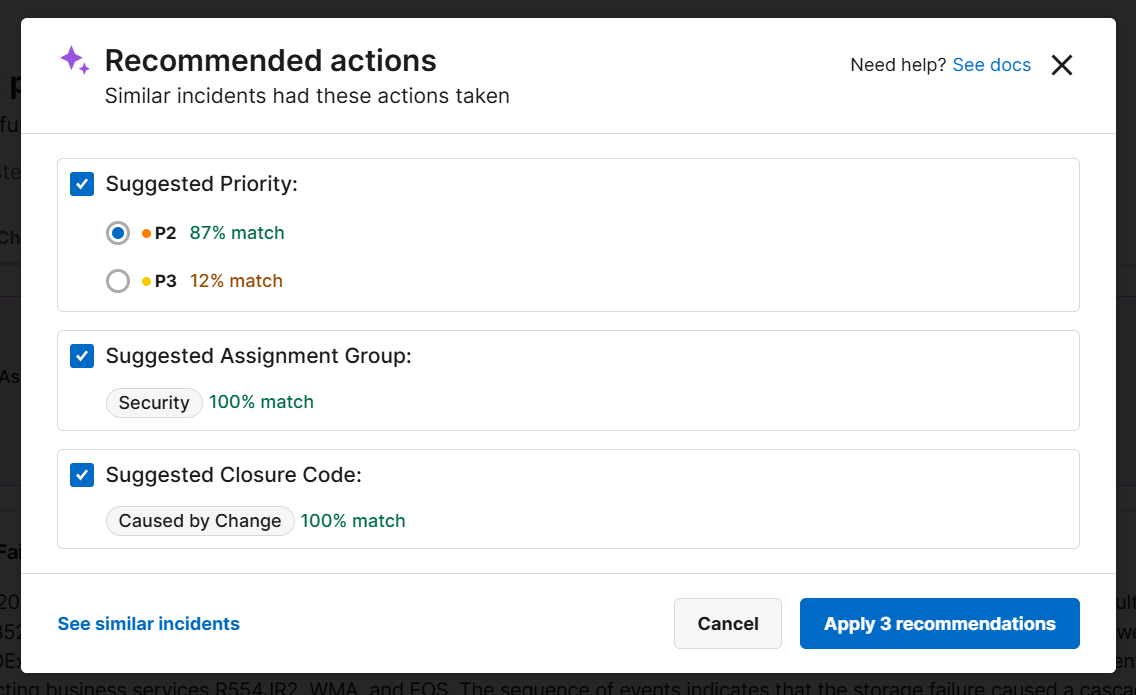
Recommended Actions
Regenerate analysis
If no recommended actions appear in the Overview tab, try regenerating the AI Analysis.
Similar Incidents in ServiceNow
If your organization uses version 2.9.2 or higher of the ServiceNow integration, you can view similar incidents from within the incident details screen in ServiceNow.

Similar Incidents are viewed in a new tab in Incident Details. For each incident that was identified as similar, the tab shows:
Link to the incident
Similarity score
Incident details such as state, impact, priority, and assignment group
Resolution code
Close notes
Reviewing these incidents can help you understand recurring issues and accelerate the resolution process.
See the AI Detection and Response for ServiceNow documentation for more information.